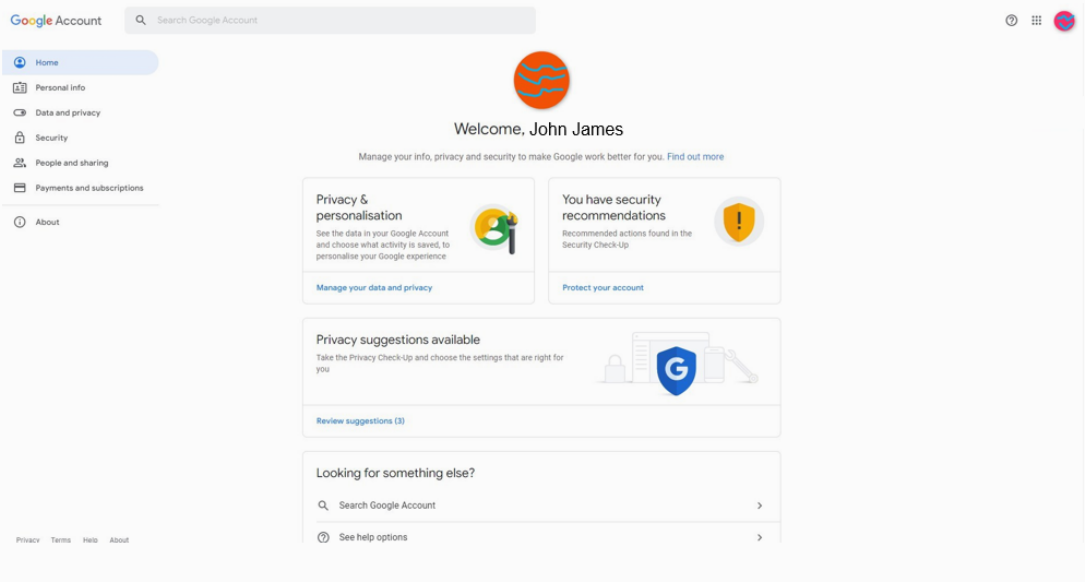
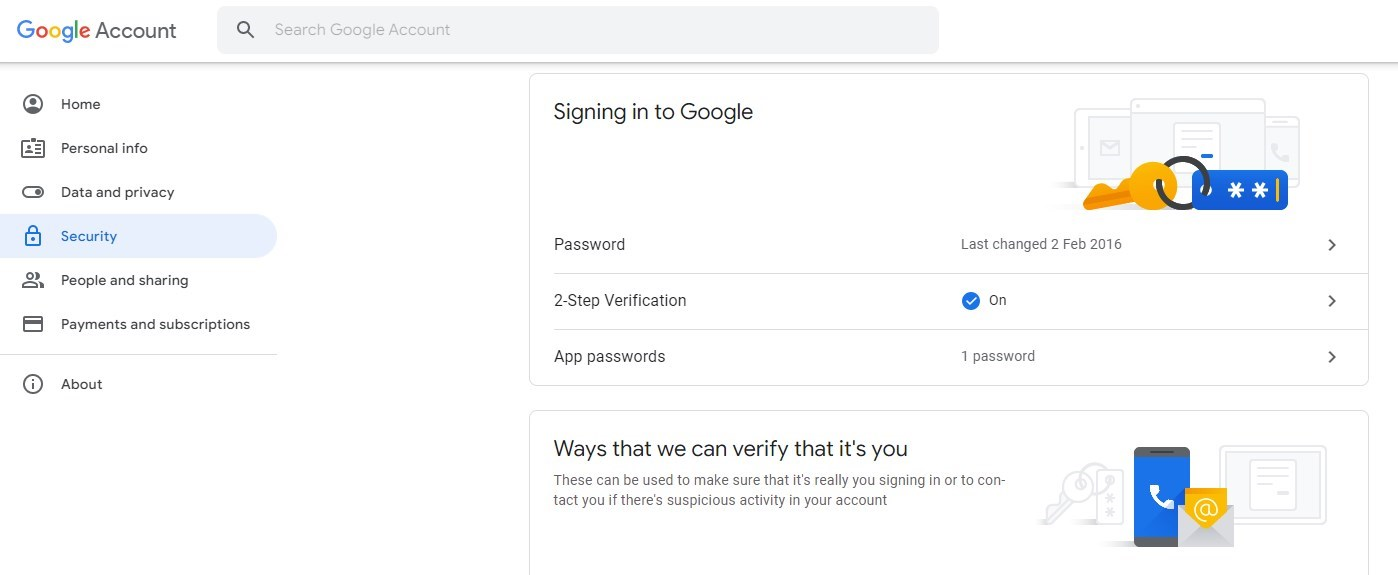
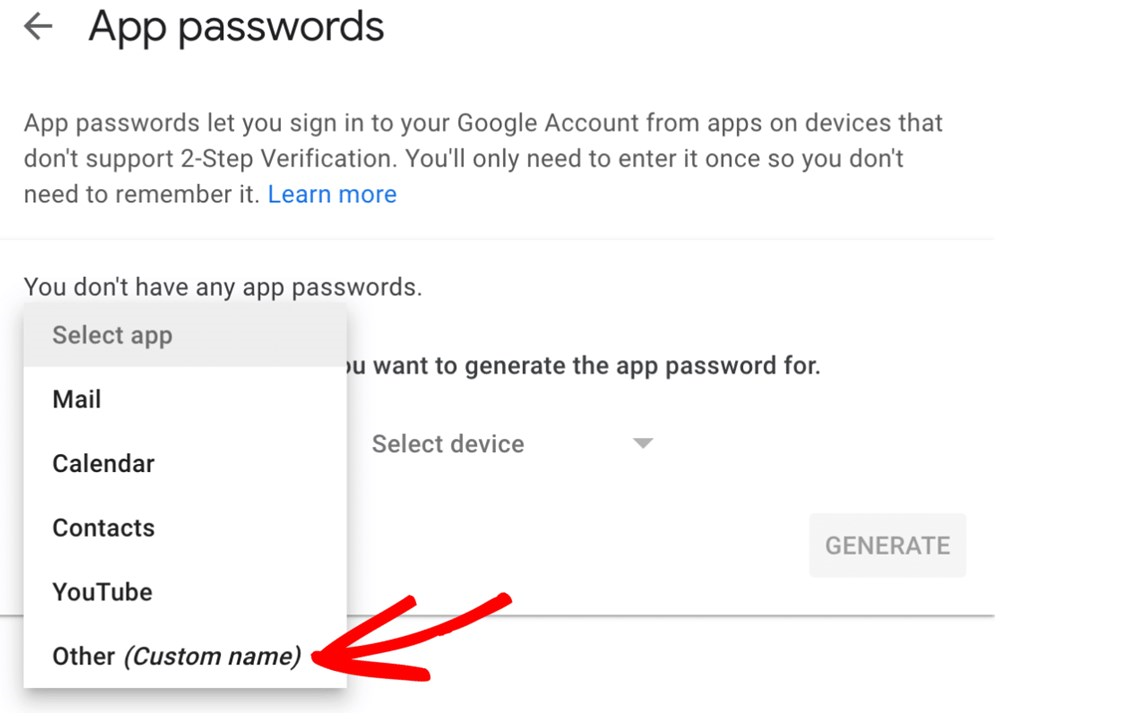
Select app drop down and from the options, select Other (Custom name)
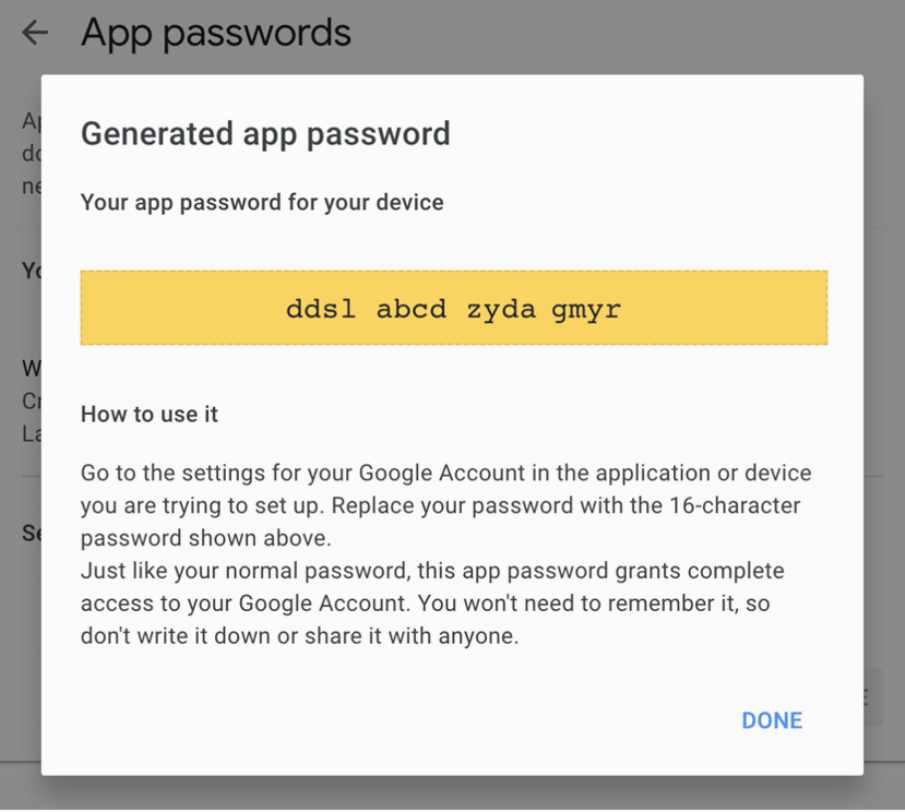
ISSUE:
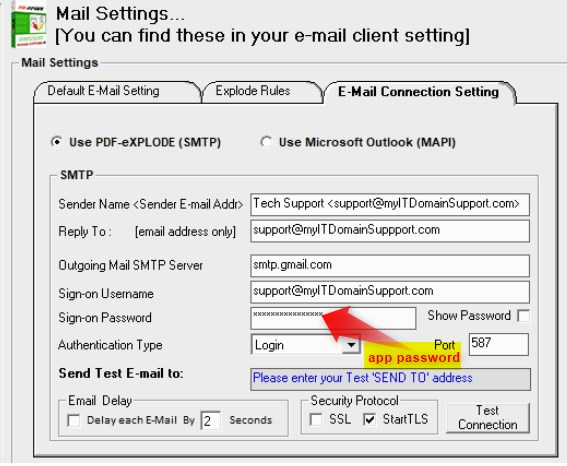
My SMTP settings in PDF-eXPLODE Email Settings is a Username nd Password. However, Gmail is complaining that PDF-eXPLODE the app, is 'Not Secure'. I have to replace the password with an App-password based on 2 Step Authentication. What do I do?
ANSWER:
The steps leading up to the Two Step Authentication (and subsequent 'App-Password' configuration) could slightly differ depending on whether your Gmail email address is a personal email directly setup with '@gmail.com' or it is Gmail account based on your own domain like : mail@3000ad.com.au which is a Gmail account. Let's start and we will get back to this difference.
Select app drop down and from the options, select Other (Custom name)
If your 2-Step Verifiction option does NOT appear below Signing in with Google section, then it has to be turned on by accessing this link: https://admin.google.com/ac/security/2sv
Once the appropriate screen opens, click Security and then in the sub-menu, select Authentication. On the right side, the following screen appears. Complete it as shown
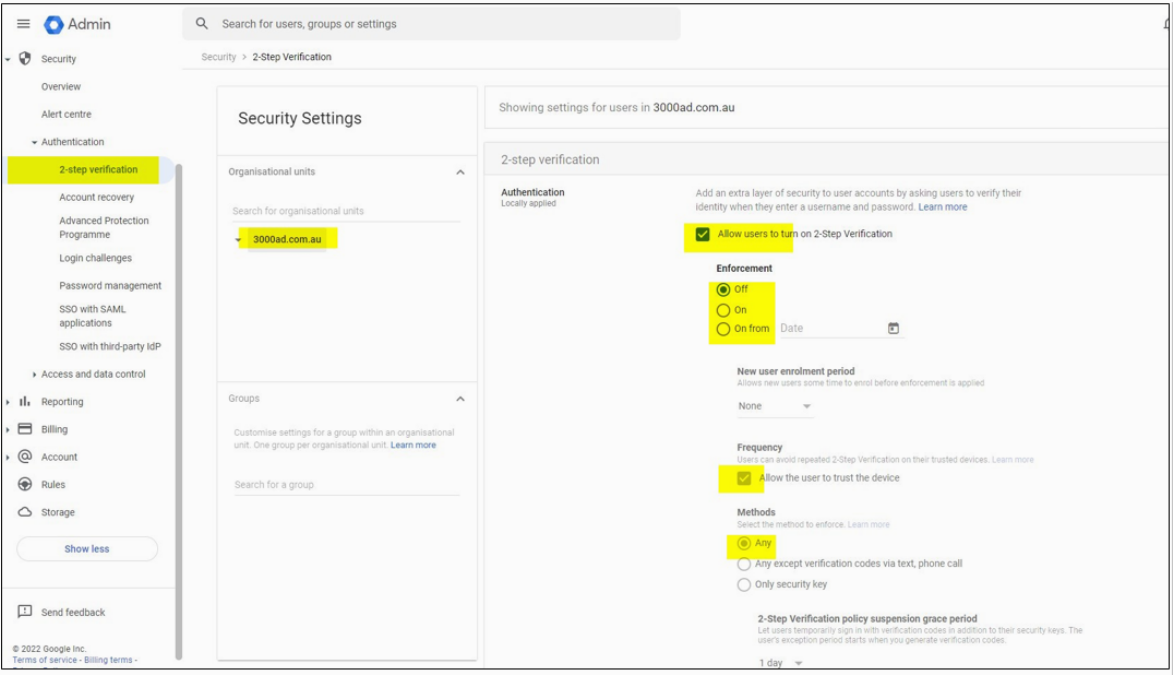
Once this is set up for your domain, then you can go back to Manage your Google Account/Security/Signing in with Google and below that will appear the 2-Step Verification. When that is turned on, App-Password will appear and you should be able to set that app-password for your PDF-eXPLODE SMTPimg_62db94f908d8e.png
If you choose, you can view a YouTube video on how to set up App Passwords in Gmail here: https://www.youtube.com/watch?v=J4CtP1MBtOE
Article ID: 122
Created On: Sat, Jul 23, 2022 at 5:34 PM
Last Updated On: Fri, Nov 4, 2022 at 7:28 AM
Online URL: https://kb.pdf-explode.com/article/how-do-i-set-up-2-step-authentication-with-app-passwords-on-gmail-smtp-for-use-in-pdf-explode-122.html