

How do I set up Multi Factor Authentication (MFA) with Office 365?
ISSUE:
I have been experiencing intermittent failures when sending SMTP emails from PDF-eXPLODE via Office 365. I was advised that the possible reason for this was my old version of PDF-eXPLODE had an outdated TLS component. So I updated my PDF-eXPLODE version which now includes TLS V1.2/1.3, but the problem of email failure still continues intermittently. I then noticed these lines in a recent SMTP email log in PDF-eXPLODE.
SmtpCmdResp: 535 5.7.139 Authentication unsuccessful, user password has expired. [CH0PR03CA0283.namprd03.prod.outlook.com]
smtpStatusCode: 535
--readSmtpResponse
SMTP authentication failed after sending password.
office365_tips:
Your office365 account might be requiring MFA (multi-factor authentication).
How do I set up Multi-Factor Authentification (MFA) as well as create and deploy an App Password in the PDF-eXPLODE SMTP?
ANSWER:
How to create App Password (Multi-Factor Authentication) for Office 365 SMTP Server
Introduction
To turn on Multi-Factor Authentication (MFA) you should read the article at this link https://docs.microsoft.com/en-us/microsoft-365/admin/security-and-compliance/set-up-multi-factor-authentication?view=o365-worldwide
Once you have MFA enabled for your MS Exchange Online mailbox in Office365 or Microsoft365, then you can’t use your main account password in PDF-eXPLODE SMTP settings to authenticate the Office365 emails to go. You will need to create a separate App Password and use it in the SMTP settings of PDF-eXPLODE. Generally, when sending an email via PDF-eXPLODE using Office 365, your regular Username and password should suffice. if the email fails with a similar error message as indicated above (in ISSUE), then most likely you need to use an App Password. This is also a message you are likely to get in your email log:
An error occured sending the message, Error:80048011
Unexpected AUTH LOGIN password response, Last Response: 535 5.7.3 Authentication unsuccessful [BLAPR03CA0069.namprd03.prod.outlook.com]
SMTP Authentication
Make sure SMTP Authentication is enabled for your online email account: https://docs.microsoft.com/en-us/exchange/clients-and-mobile-in-exchange-online/authenticated-client-smtp-submission .
To Create App Password
1. Sign into Office 365.
2. Choose Settings > Office 365 .
3. Choose Security & Privacy > Additional Security Verification . You’ll only see this option if your admin has set up multi-factor authentication for your organization. If you don’t see this option, contact your Office 365 admin and tell them to turn on multi-factor authentication.
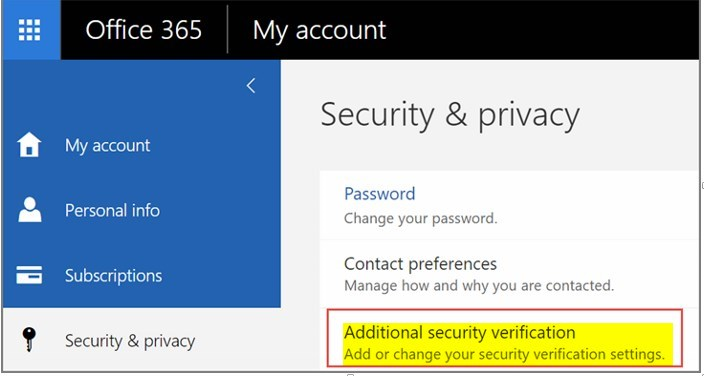
4. After selecting the option as shown above, choose Update my Phone Numbers Used for Account Security . You should see the following screen:

5. At the top of the page, choose App Passwords .
6. Choose Create to get an app password.
7. If prompted, type a name for your app password, like "PDFeXPLODE" and click Next .
8. Click on copy password to clipboard button.
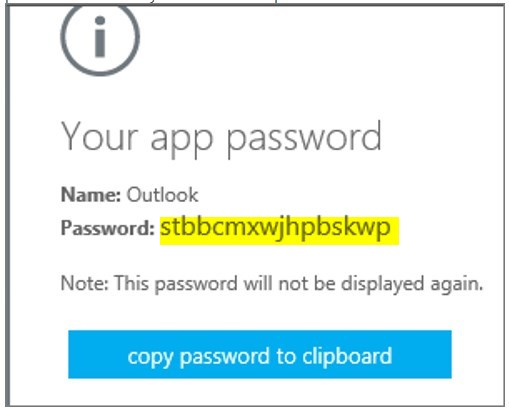
9. Open Notepad and paste ([CTRL]+V) this App Password and a description like: Today's date/ Office365 App Password. Then click FILE/SAVE and Save this Notepad note to PDF-eXPLODE folder with a name like O365-App-Password.txt
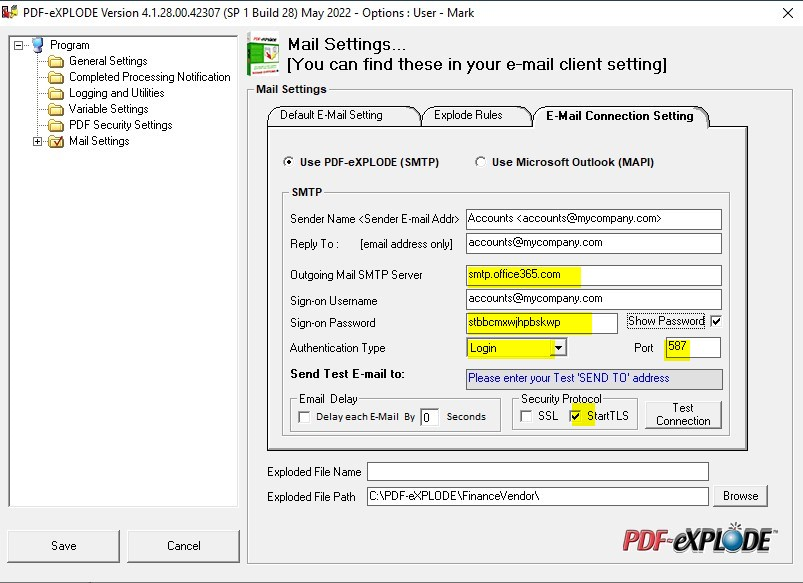
10. Now open email settings in PDF-eXPLODE and use this password for SMTP connection parameters instead of your main account password.
Office365 SMTP Server Settings for PDF-eXPLODE
The settings below should work for everyone with an Office 365 or Microsoft 365 plan that has Exchange Online. Use these settings in PDF-eXPLODE E-mail Connection settings
- SMTP Server address: smtp.office365.com
- SMTP Port number: 587
- Security Protocol: StartTLS
- Authentication: Login
- Username: (your Office 365 email address) (myemail@mycompany.com)
- Password: (your Office 365 password) ==> APP PASSWORD (16 characters)

 You Can...
 Subscribe to Article
 Print Article
 Email Article to Friend
 Export to PDF
 Export to MS Word
 Article Information
 Attachments
